

Change in the text
Text size
Did you know that you can change the text size in your browser? Some plugins allow you to enlarge your screen content at any time – without compromising readability.
Here’s how to do it in Google Chrome:
- Settings
- Depiction
- Zoom in on the page (up to 500% possible)
Here’s how to do it in Firefox:
- Settings
- Zoom up to 400% (you can also zoom only the text; to do this, click the checkbox)
Here’s how it works on Safari:
- Settings
- Websites
- Page zoom: Here you can control the zoom on individual pages and specify in the bottom-right corner how large the zoom should be on all other pages (up to 300%).
Change font & line height.
Some fonts are difficult to read, especially for people with visual impairments or dyslexia. However, more important than the font itself are the line height and the spacing between letters and words.
Unfortunately, this cannot be configured in the operating system. However, there are very helpful browser extensions available, such as those that convert all your fonts to Comic Sans! For example, Custom Text Fonts for Safari or the Font Changer for Google Chrome.
Changes to the display
High contrast mode
High contrast is almost always helpful for people with visual impairments. You can adjust the contrast ratio quite precisely and in various ways within your operating system.
Here’s how to do it on a Mac:
- Accessibility features
- Advertisement

Here’s how to do it in Windows:
- Start
- Settings
- Easier operation
- High contrast
Grayscale mode
This mode adjusts a page’s colors to produce different shades of gray. This helps with visual impairments, but also with photosensitive epilepsy or ADHD.
Here’s how to do it on a Mac:
- System settings
- Accessibility features
- Advertisement
- Color filter
- Grayscale

Here’s how to do it in Windows:
- Start
- Settings
- Easier operation
- Activate color filter
- Greyscale/inverted greyscale
Here’s how to do it in Chrome:
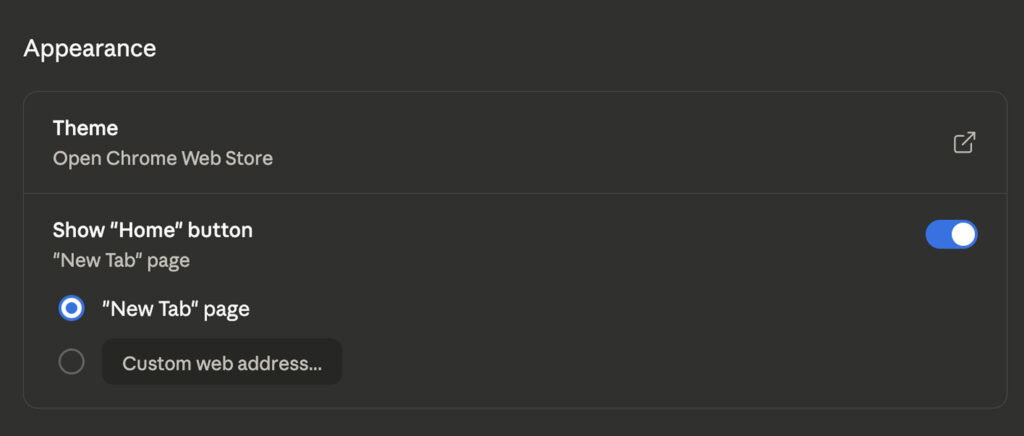
In the Chrome Web Store, you can choose from various themes, including black and white. Here’s how:
- Browser settings
- Depiction
- design
- Select the theme in the Google Chrome Web Store
The browser will then automatically adapt to the new design.
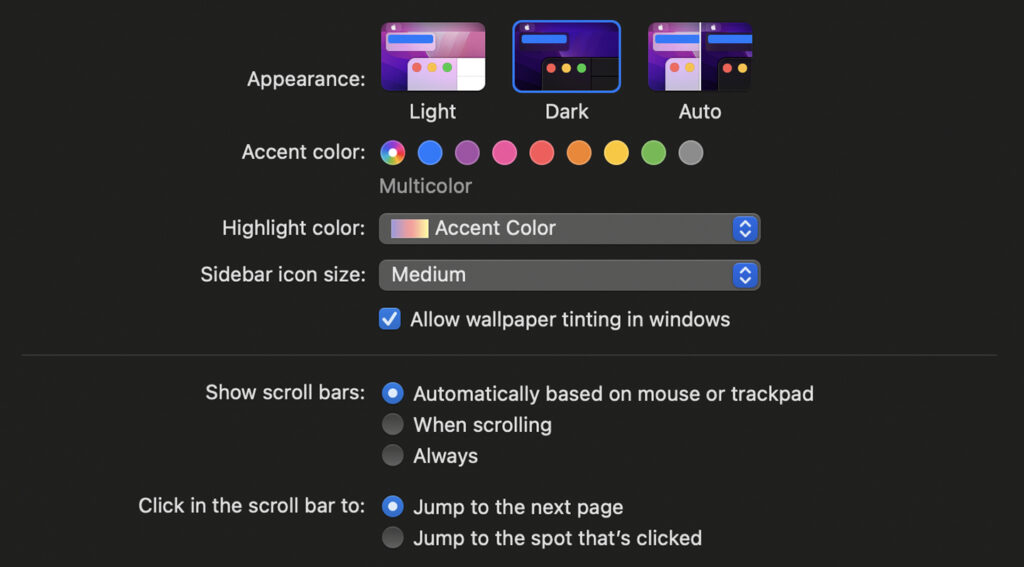
Here’s how to do it in Safari:
You can also activate dark mode in the system settings under Appearance. This will make your browsers display in this mode as well.
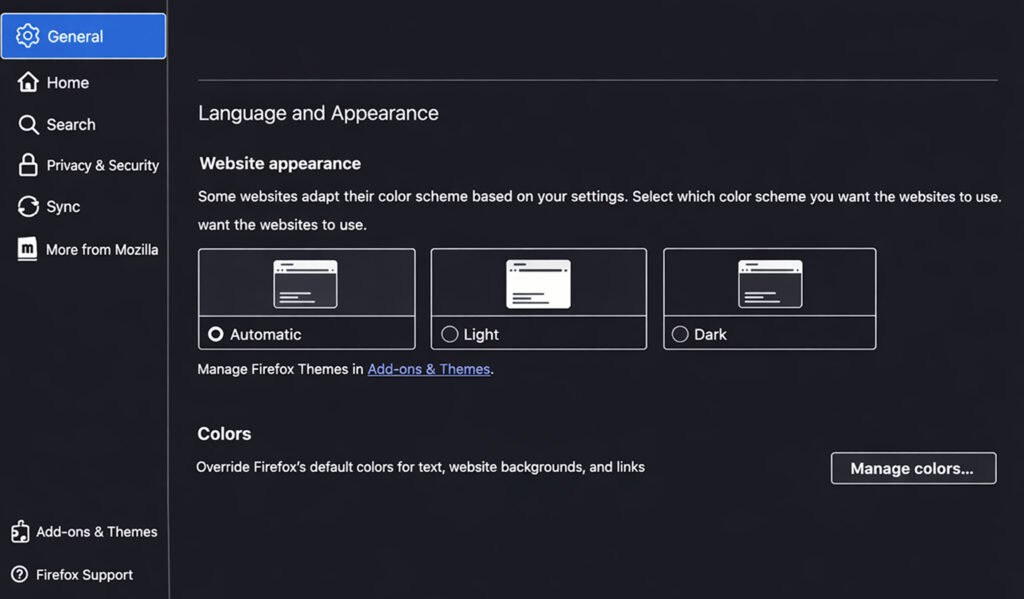
Here’s how to do it in Firefox:
- Settings
- Generally
- Language and appearance
Here, you can also enable dark mode and override the default colors for text, websites, and links.
Change colors
People with visual impairments such as color blindness or reduced visual acuity can benefit from adapted color schemes. Certain color combinations may be easier for them to distinguish. Some people are sensitive to specific colors or brightness levels. Therefore, the ability to adjust colors can help reduce eye strain and discomfort. Color adjustments can also help people with certain cognitive impairments, such as dyslexia or attention-deficit/hyperactivity disorder (ADHD), by improving visual clarity and reducing distractions.
Here’s how to do it on a Mac:
- System settings
- Accessibility features
- Advertisement
- Activate color filter
- Select filter

Here’s how to do it in Windows:
- Start
- Settings
- Easier operation
- Color filter
Focus indicator
Sighted users can easily identify the focus point on a website as they navigate from one point to the next. Unfortunately, operating systems and browsers don’t have a built-in way to enhance the focus indicator. However, when a screen reader is enabled, both Windows and Mac offer improved focus indications. There are also browser plugins that can enhance the focus on every visited website.
Change cursor
As with the focus indicator, people with visual impairments benefit from the ability to independently change the cursor.
In Windows and Mac, you can change the pointer and cursor by default.
Here’s how to do it on a Mac:
- System settings
- Accessibility aids
- Advertisement
- Hands (size and individual color adjustable)

Here’s how to do it in Windows:
- Start
- Settings
- Easier access aids
- Mouse pointer and finger movement
- Change size and color
Stop animations
Stopping animations is important because it protects people with photosensitivity or epilepsy from potentially dangerous stimuli that can trigger seizures. It also helps people with attention deficit disorders or visual hypersensitivity to concentrate better and reduces visual distractions. And it also benefits those who prefer a calmer, less dynamic user interface. Both Windows and Mac users can adjust this setting (turn off animations) in their preferences.
Here’s how to do it on a Mac:
- System settings
- Accessibility features
- Advertisement
- Reduce transparency
- Reduce movement
Additionally, you can turn off the animation when opening programs in System Preferences under Dock/Menu Bar.
Here’s how to do it in Windows:
- Start
- Settings
- Easier operation
- Advertisement
- Show animations in Windows (off)
You can also configure your browser to stop animated content.
Here’s how to do it in Chrome:
Unfortunately, Chrome doesn’t offer this feature by default, but the Stop Animations extension prevents it.
Click here to access the Stop Animations browser extension.
Here’s how to do it in Firefox:
- Type “about: config” (without the quotation marks) into the address bar.
- Search the page for the word “animation”.
- Now double-click on the image.animation_mode
- In the window that opens, type “none” (without quotation marks).
- Click OK
Unfortunately, Safari doesn’t offer this feature! However, you can at least reduce animations via the Mac settings above.
Text-to-speech
For users with visual impairments and those with cognitive disabilities, a screen reader is essential. It’s great that both Windows and Mac have one built in. Adobe Reader and Microsoft Office also include this feature. And, of course, several plugins offer additional features, such as highlighting the text currently being read aloud.
Where can you find the screen reader on a Mac?
- System settings
- Accessibility aids
- VoiceOver

Where can you find the “Narrator” on Windows?
Windows logo key + Ctrl + Enter.
Press the Windows logo key + Ctrl + N to open the Narrator settings.
Voice Control
Voice control helps users with motor impairments to control the computer, navigate, and enter text.
Windows and Mac have built-in voice control. Paid applications also offer this functionality. Here are a few providers:
- Apple
- Windows
- Android
Warning: If you activate assistive technologies, you may find it difficult to deactivate them verbally if you don’t know how (personal experience).
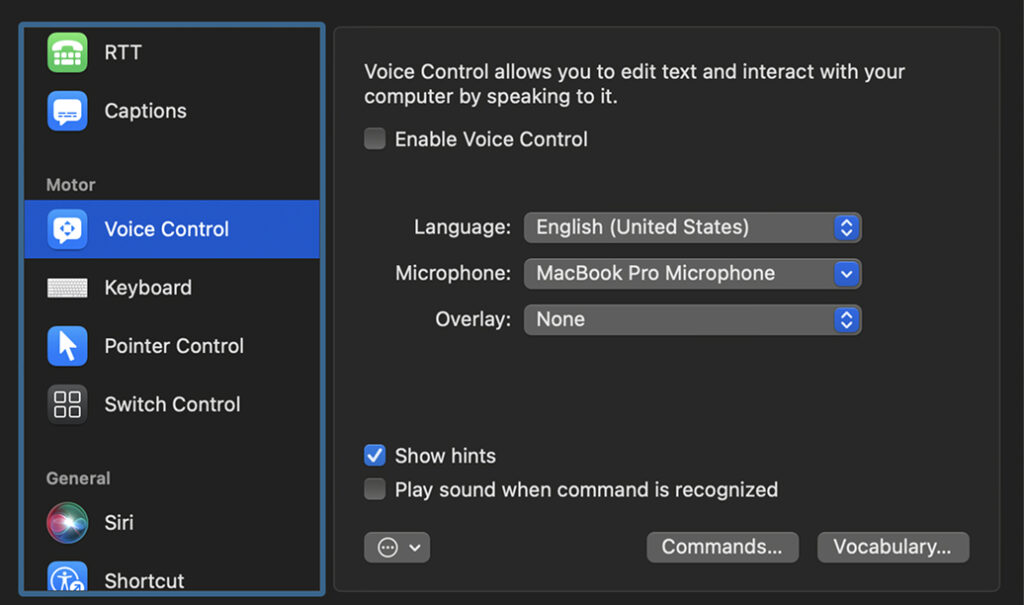
Enable voice control on Mac:
- System settings
- Accessibility features
- Motor skills: Voice control
Enable voice control in Windows:
- System settings
- Easier operation
- Activate voice control
Know your system!
Knowing your operating system settings is always a good idea. It doesn’t matter if you have a disability or are setting up your grandmother’s PC: if you’re familiar with the settings, you can adapt your PC or Mac to your needs. For people with disabilities, the availability of accessibility settings in operating systems means a huge improvement in their digital experiences and, consequently, their quality of life.
