
The foundation for an accessible WordPress site: Builder and Theme
The right builder or theme for your WordPress site is the foundation for your future digital accessibility. If you have the wrong theme, you can do all you want to make it accessible, but you won’t be able to solve the fundamental problems it entails.
We now have a whole article on the topic: Accessible WordPress with the right themes and builders.
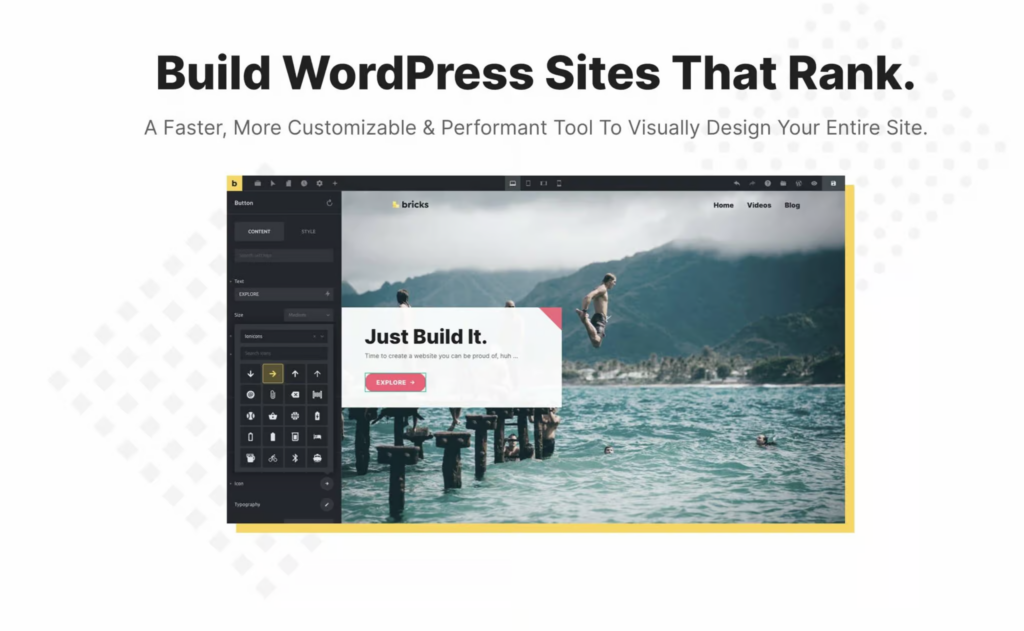
The Bricks Builder
We are in love with the Bricks Builder. It has extremely fast loading times, offers a lot of creative freedom, and is also accessible.
Bricks delivers a clean HTML structure and creates three sections on each page by default: Header, Main, and Footer. These are so-called ARIA landmarks, which help your users with screen readers navigate the website more easily.
Furthermore, Bricks automatically inserts links like “Skip to Main” and “Skip to Footer” into the header. This allows users to jump to the relevant areas of the page quickly. For example, a user with a screen reader doesn’t have to struggle through the navigation every time to reach the page’s main content. They can simply skip the navigation.
That’s not all: Bricks also allows you to set custom attributes. This lets you add additional attributes to any HTML element. This is useful for adding ARIA labels to individual elements, for example, to make them visible only to screen readers.
A small but nice addition: Bricks has standard CSS for styling the “: focus” property. This adds focus to links, buttons, or other navigation elements to help users orient themselves.
You can find out more about Bricks and accessibility on their website. Here’s the link: Link to Bricks’ website and their accessibility statement.
The all-in-one solution GREYD
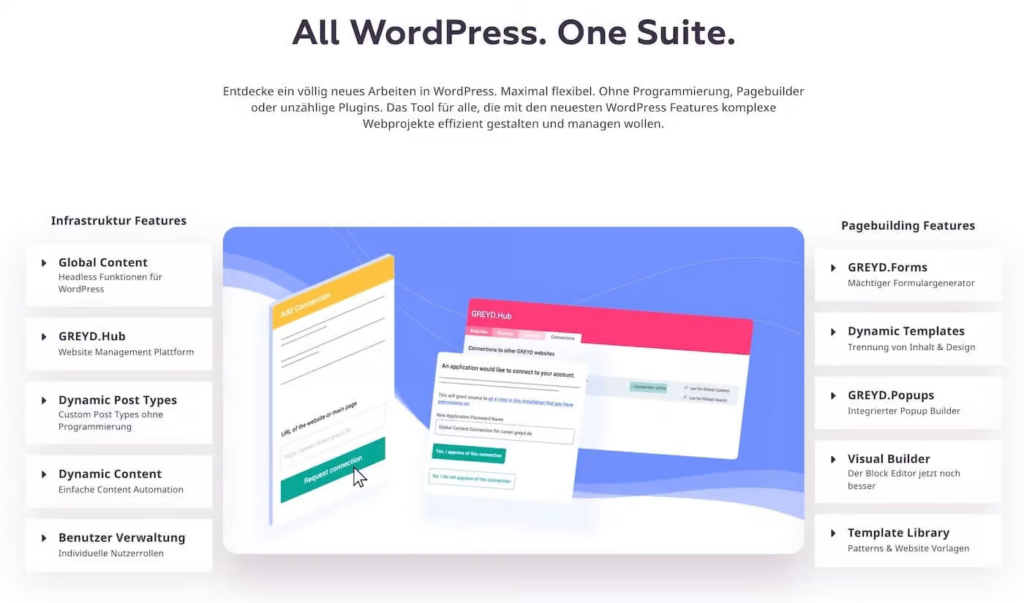
This is what GREYD says about himself:
“With GREYD.SUITE, we have created an all-in-one solution for professional websites that goes far beyond simply creating beautiful websites. Agile content management, headless CMS, time savings – these are the relevant future topics in web design that we are addressing with GREYD.SUITE.”
And we can only confirm that! GREYD is a very comprehensive and makes many other plugins ,like Metabox, superfluous and allows you to build very extensive and complex website systems. We are particularly impressed by the ease of managing the various GREYD pages in the background. But that’s a topic for another time!
The important thing for us: GREYD has teamed up with Anne-Mieke Bovelett, one of the leading voices in digital accessibility. Together, they are currently working very hard to make their tool completely accessible.
Visit GREYD’s website: greys.de (opens in a new tab)
Visit Anne-Mieke Bovelett’s website: annebovelett.de (opens in a new tab; G)
Accessible navigation and mega menu
Accessible navigation is the heart of your website. The Bricks Builder can help you with this again. Since the latest release (May 31, 2023), it has integrated accessible navigation and even an accessible mega menu.
All menus generated by Bricks are embedded in a <nav> tag and fully comply with keyboard navigation. This allows visitors to navigate through the menu items using the keyboard. The following keyboard commands apply:
- TAB: Selects the next menu item.
- SHIFT + TAB: Selects the previous menu item.
- ENTER: Follow the link, similar to a click.
- SPACEBAR: Toggles the submenu (if available).
With these keyboard access features, Bricks ensures that your navigation is accessible to all users, whether they use a mouse or a keyboard.
We have not found anything comparable that enables such seamless integration of accessible navigation.
Accessible plugin for a contact form in WordPress
Making forms accessible is quite a difficult task. Creating forms from scratch is very time-consuming, so we recommend using a plugin.
However, we had to search for quite a while to find good plug-ins.
One of the free options we found is Contact Form 7. This plugin lets you write your own HTML and CSS, giving you a lot of control over your form’s accessibility. However, there’s a catch: the error messages are not accessible.
There is a solution, but it requires technical expertise and the ability to manage updates yourself. If you’re interested, here’s the link: [Link to the GitHub page for the Contact Form 7 accessibility extension ]
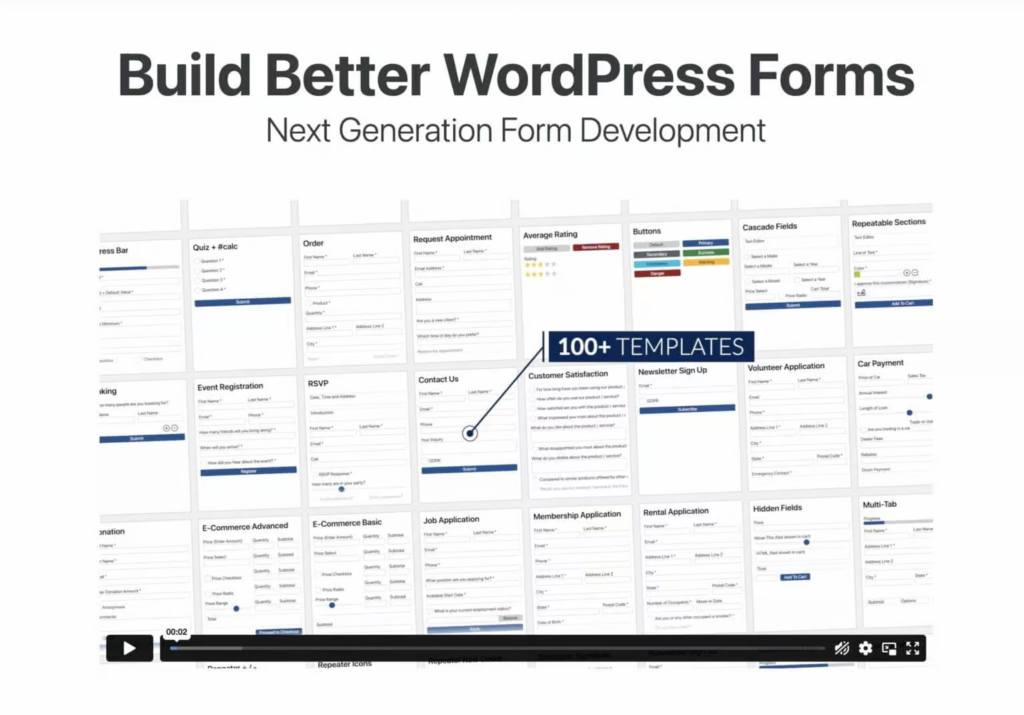
Otherwise, we only found two other plug-ins that are currently considered accessible: Gravity Forms & WS-Forms.
Gravity Forms is a paid service (starting at $59 per year for one site), but it is at least very accessible. Here is the link to the site: Gravity Forms website.
WS-Forms also offers a free, accessible light version. You can find the link here: Link to the WS-Forms page.
Accessible plugin for cookie banners in WordPress
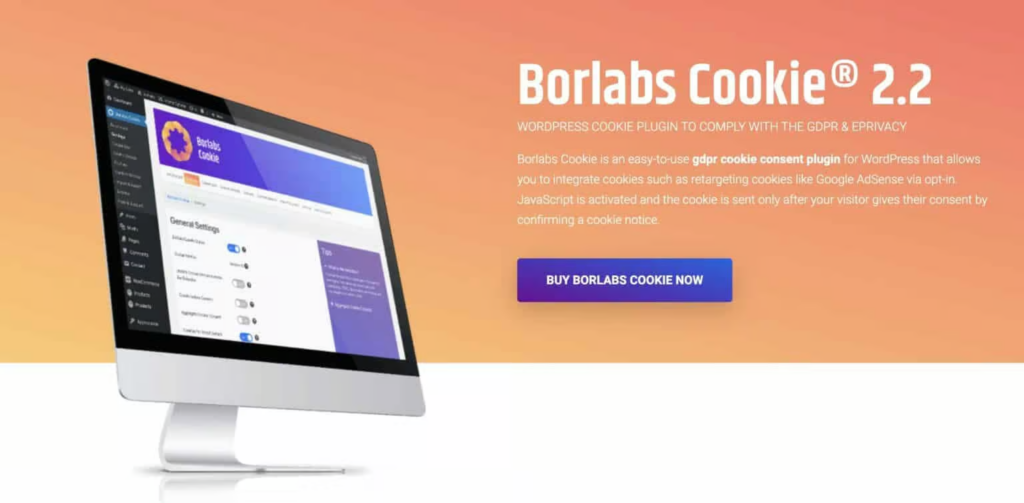
A cookie banner is annoying enough as it is, but it’s even worse for screen reader users. Nevertheless, we have to live with it and need accessible solutions. Borlabs Cookies is one such solution.
The Borlabs cookie banner is accessible, and we can recommend it with a clear conscience. Here is the link: Borlabs Cookies product page.
We haven’t tested Cookiebot ourselves, but according to their documentation, they meet WCAG 2.1 accessibility standards. Here’s the link: Cookiebot documentation.
Cookieless tracking is currently trending, and with tools like Matomo, it’s sometimes possible to completely forgo a cookie banner. However, you should be well-informed about data privacy issues. Learn more about cookieless tracking with Matomo.
Accessible plugin for tables in WordPress
To make tables accessible and responsive, we recommend TablePress. No HTML knowledge is required. TablePress offers a user-friendly interface for creating, managing, and editing tables.
TablePress makes it easy to create accessible table headers and search functions. However, caution is advised, as not all TablePress features are accessible!
The following link provides a good description of how to create tables with TablePress. It also includes a very detailed list of which functions you are allowed to use and which you are not, if you want to keep your tables accessible. Here is the link: Link to the TablePress explanation.
Embed accessible videos
To be accessible, videos must allow users to turn subtitles on and off. These subtitles should also be customizable in size, shape, color, and so on.
YouTube lets you add transcripts to videos, making them more accessible. The BIK (German Association for the Disabled) writes the following about this on its website:
“Anyone wanting to embed videos via YouTube should follow YouTube’s recommendations for developers to ensure that YouTube videos are played back using an HTML5 player. In our opinion, YouTube is good in terms of accessibility; however, you don’t have access to the functionality of the YouTube player on your own website and have to make do with the accessibility features that YouTube provides.”
Source: BIKV website
For those who want to delve deeper into the topic, we have this link: a comparison of all web-based media players and their accessibility.
Accessible plug-in for booking appointments
While Calendly isn’t a direct WordPress plugin, you can embed it directly on a website if you wish. Alternatively, you can link to Calendly’s own book page.
Either way, two of our blind testers have confirmed that they can now easily book appointments on Calendly.
Here’s the link: [Link to Calendly page].
Dark mode plugins for WordPress
There are dark mode plugins for WordPress. However, we generally do not recommend such plugins.
Users can specify how they want to view a website in their PC or browser settings. If someone has activated dark mode, they will also see your website in dark mode. Therefore, it’s important to ensure that your site also works with inverted colors.
Of course, you can also create your own dark mode to improve the appearance. However, a plugin won’t help much with that. Instead, you should do it with CSS. There’s even a dedicated media query for this in CSS:
@media (prefers-color-scheme: dark) {
/* CSS Code wenn Dark Mode aktiv */
}
Layout plugin: Frames for WordPress
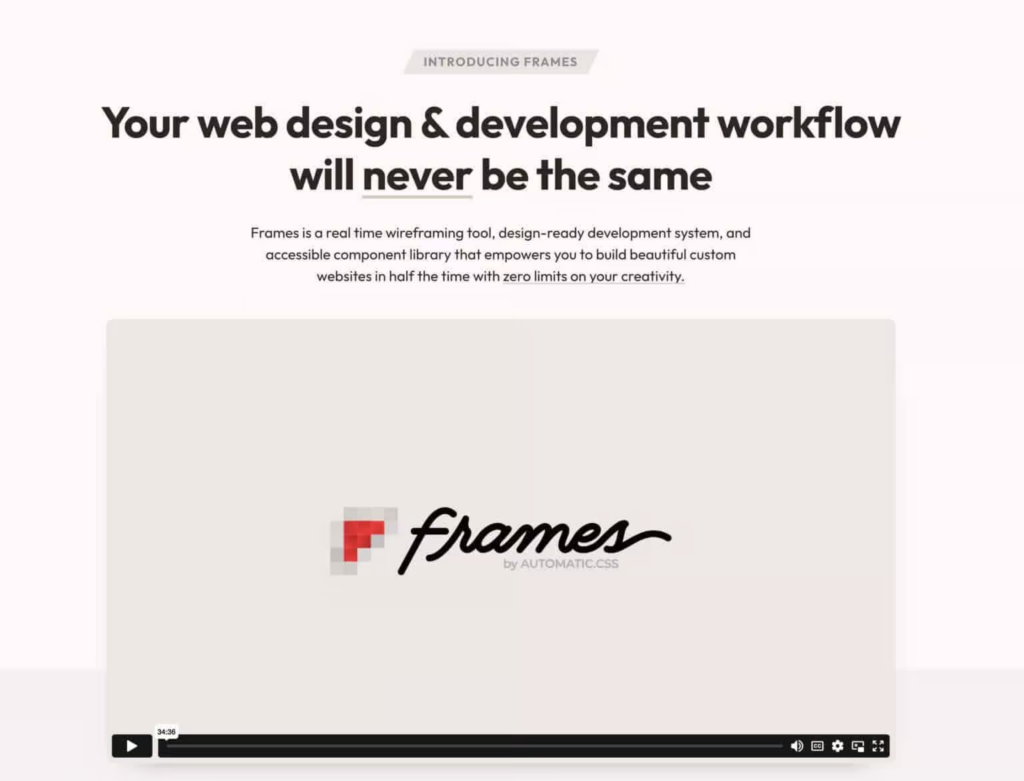
Finally, a little insider tip: Get the “Frames” plugin by Kevin Geary. It’s not really a plugin, more of a library of UI templates for the Bricks builder.
Frames provides pre-built layouts that you can simply drag and drop into your page. These layouts have scalable CSS, clean HTML, and the correct Aria label already set.
Frames save you a tremendous amount of work in the design and development process. Learn more at this link: Link to the GetFrames.io page.
Conclusion on accessibility in WordPress
There’s still a lot to do to make WordPress sites accessible, but progress is being made! We hope we’ve been able to recommend a few plugins here that you weren’t aware of before.
If you use any other plugins to ensure accessibility, please let us know!
Want to learn more about making WordPress accessible? This article will teach you how to create accessible blog posts with WordPress.
