How accessible is your e-learning tool?
Almost every authoring tool now advertises its ability to create accessible e-learning courses. In practice, however, it’s rarely that simple. When tools like Articulate, Rise, Captivate, or Lectora talk about accessibility, they usually mean: The tool offers features that can help you create accessible content if you use them intentionally.
If you want to work according to common standards and best practices, this promise alone is not enough. The statement “This tool can create accessible content” does not mean that every course is automatically accessible. It means: The tool enables you to do so, provided you use its functions correctly and that the tool itself has no technical flaws.
If accessibility depends solely on your expertise, that’s great. But if the problem lies with the tool itself, a truly accessible course will only be possible in a limited form, or not at all.
Here’s how to check if your e-learning tool can create accessible content.
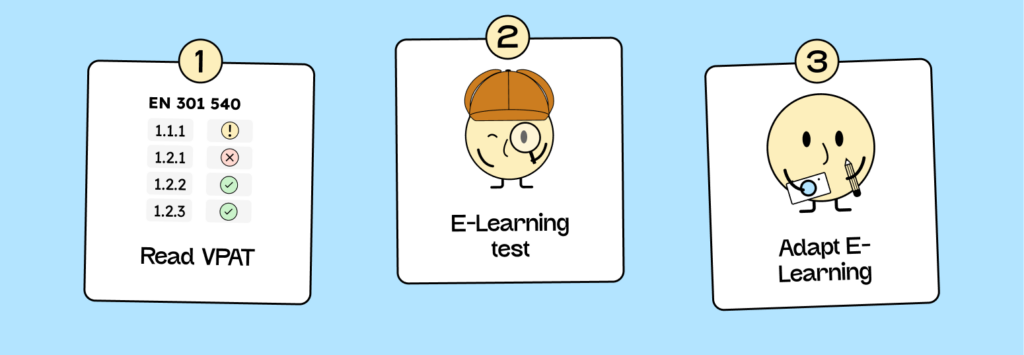
To find out where your tool stands, it’s worth reviewing the documentation. Most providers who are seriously concerned with accessibility publish reports on this.
The VPAT (Voluntary Product Accessibility Template) is a standardized document in which software vendors disclose the extent to which their products meet digital accessibility requirements. In the European context, EN 301 549 is particularly important. It describes the requirements that digital content must meet to be considered accessible. WCAG is included, but only as one aspect. EN 301 549 goes further, including additional points, such as those relating to video players.
Many VPATs – including Articulate Rise’s – list several standards and norms side by side: EN 301 549 (German) (European standard), WCAG (international web standard), and Section 508 (US standard). If you work as an e-learning creator in Europe, refer to the EN and WCAG entries.
Step 1: How to read VPAT correctly
When you open the VPAT, you’ll usually see a table with the columns Requirement, Conformance Level, and Remarks and Explanation. Pay particular attention to the Conformance Levels. They indicate how completely the respective criteria are met.
| Evaluation | Meaning | Consequence |
|---|---|---|
| Supports | There is at least one method that meets the criterion without known errors or implements it with an equivalent alternative. | The feature meets the standard. You can use it without major limitations. |
| Partially Supports | Some of the product features do not meet the criterion. | Only partially accessible. You need to check which functions are affected and make any necessary adjustments. |
| Does Not Support | Most product features do not meet the criterion. | This feature is currently not fully accessible. You will need workarounds or alternatives. |
| Not Applicable | This criterion is not relevant to the product. | Critically examine whether this also applies to your usage scenario. |
An example from Rise’s VPAT:
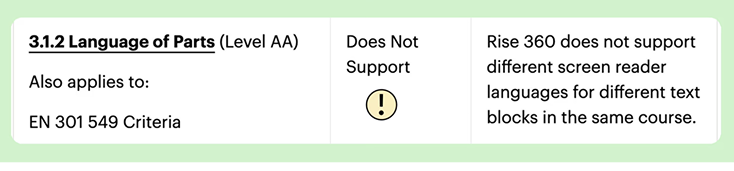
The requirement 3.2.1 Language of Parts (AA) states “Does Not Support “. This means that language changes within a Rise course cannot currently be correctly marked. Screen readers, therefore, do not automatically recognize when a section is in a different language and read it aloud with incorrect pronunciation.
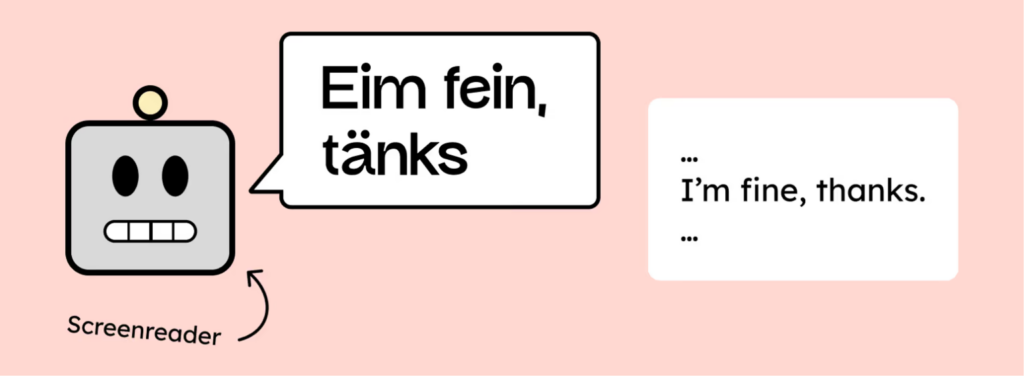
As soon as you use text in another language within a course, such as an English quote, you cannot currently technically mark this in Rise. Therefore, the course does not meet this criterion. Multilingual content can only be implemented via workarounds, or you can consistently stick to one language within a module.
If you frequently see “Partially Supports” or “Does Not Support” in a VPAT, there’s no need to panic, but it is a warning sign. It shows you where to test next to see whether these limitations are relevant to your content.
Step 2: Test the accessibility of your e-learning.
The accessibility of your course is not reflected in the editor, but in the published course, i.e., where it is used. Depending on the setup, your course can run in different locations:
- With an integrated player or tool hosting: Here, the course is delivered directly via the manufacturer’s platform. This is fast and convenient, but you have little control over the underlying technology. The player itself may contain barriers.
- When exporting via SCORM, xAPI, or Webexport to the LMS: Here, a second layer is added – your Learning Management System (LMS). It can change the presentation or add its own barriers (e.g., through pop-ups or inaccessible task types).
So, if you want to check whether your course is truly accessible, always test it where it will later be delivered – in the actual player or LMS, not in the tool preview. While a complete accessibility audit is time-consuming, you can plan small test phases to identify and avoid common barriers early on, even without being an accessibility expert.
Here’s how to proceed with testing.
- Keyboard navigation: Can you navigate through the entire course using only the keyboard? Use the Tab key to move through all interactive elements, check the order, and ensure the focus remains visible. Can any interactive elements be operated with the Enter or Spacebar?
- Focus order and reading logic: Does the focus follow a comprehensible structure? Especially with SCORM exports, the order sometimes shifts slightly, e.g., due to additional player frames or navigation bars.
- Meaningful alternatives: Are there meaningful alternatives to the images? Are buttons and links clearly labeled?
- Media content: Play videos and audio. Are subtitles available and correctly synchronized? Can playback be controlled with the keyboard?
- Contrast and readability: Check your course with Zoom. Are the texts clearly legible and the buttons easily recognizable?
If you want absolute certainty, you would have to measure your course against all the criteria of EN 301 549.
Everything you need to know about creating accessible content!
- What types of content actually need to be accessible: social media, websites, newsletters?
- What requirements apply to content, and how do you implement them—without missing anything?
- How do you integrate accessibility into your daily workflow without it becoming a major extra burden?
Through theory and practice, we’ll show you what we’ve taught participants—from Aktion Mensch to Deutsche Bahn—over the past three years!

Step 3: Evaluate results and adjust course
Now it’s about putting your exam results into perspective. Not every anomaly is a deal-breaker; some are easily fixed, others are beyond your control. Start with a simple distinction:
1. Errors you can fix directly in the tool:
These are typical craftsmanship errors, things that can be quickly corrected with knowledge:
- Missing alternative text
- Unclear or duplicate focus orders
- Missing or incorrect structure of the content
- Missing subtitles or unlabeled elements
- Color contrasts that you can adjust in the layout.
These points immediately improve usability and show that you have your tool under control.
2. Problems originating from the tool itself
Sometimes you encounter barriers you can’t overcome on your own. For example, the player might not support keyboard controls, or a default template might be hard-coded. In these cases, it helps to check the VPAT or the manufacturer’s release notes to see if the problem is known. If so, you can document it or implement a workaround.
3. Problems arising from the LMS
Especially with SCORM or xAPI exports, sometimes obstacles creep in that have nothing to do with your tool. If focus or contrast works in the preview but not in the LMS, this is usually due to additional frames, navigation bars, or scripts. In this case, it’s worth contacting the LMS administrator or opening the course outside the system for testing purposes.
Separating these three levels gives you a realistic picture of what you can improve directly, what you need to revise conceptually, and what you should escalate or replace.
Typical problems in e-learning
Many technical or functional problems arise not from missing features, but from design decisions made during the development process. Some effects look convincing, but don’t work reliably or only for a subset of users. These are the most common sources of error you should keep an eye on:
Practice exercises without keyboard access
Many interactive task types, especially drag-and-drop or click-based quiz modules, often cannot be controlled with the keyboard. They rely on mouse movements or touch gestures that screen readers and keyboard navigation cannot detect. The problem usually lies with the tool’s player and cannot be directly fixed.
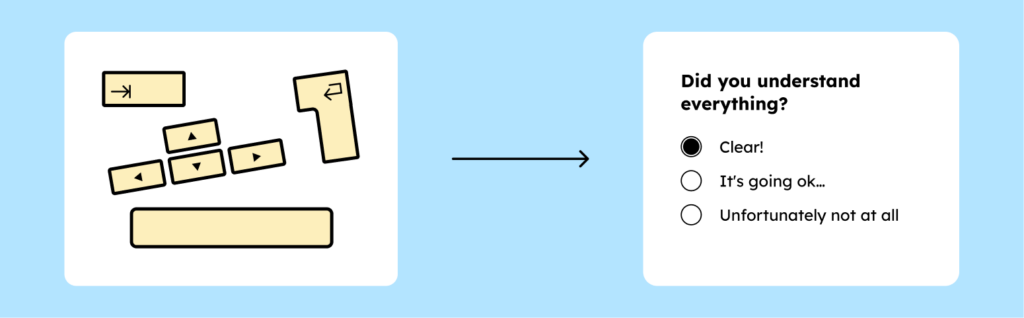
When using such tasks, always test them with the Tab and Enter keys. Can every input field be selected and every action triggered? If not, the task type is technically limited. Therefore, ensure that the task can either be operated via keyboard or that a functionally equivalent alternative exists. For example, a multiple-choice or matching question serves the same learning purpose. This way, you ensure that your course remains fully usable even without a mouse.
Reading order and focus logic
A clear reading order is crucial so that screen readers and keyboard navigation can process content in the correct sequence. Many tools automatically arrange elements in the order they are added. However, this only works if you consistently maintain the order when creating the content, meaning you don’t move or add content later.
A problem arises when the visual sequence and the technical reading sequence do not match. For example, screen readers might read out a practice exercise before reaching the course page title.
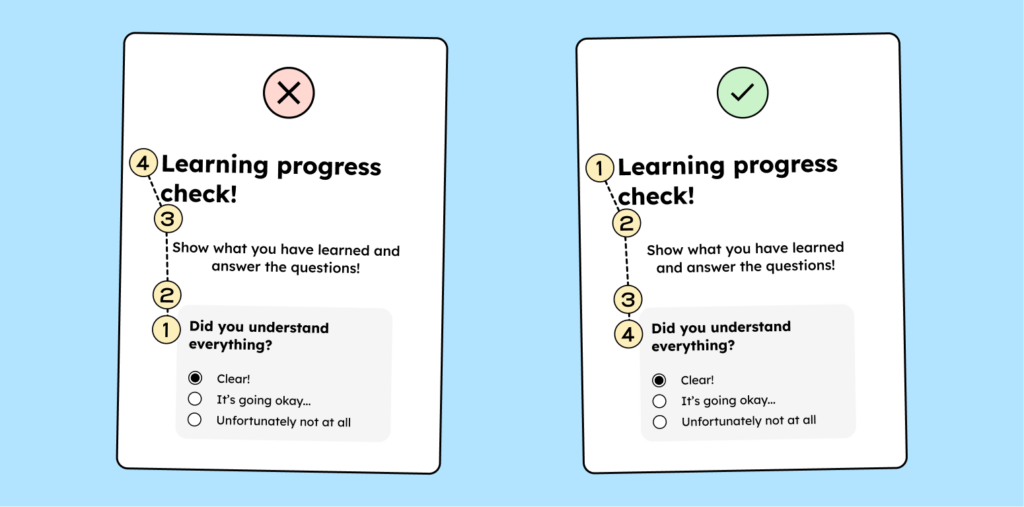
Regularly check the order of your slides or blocks:
- Follow the course using the Tab key.
- Observe whether the focus moves logically from top to bottom or from left to right.
- Manually adjust the order in the tool if it does not match the visible layout.
In tools like Storyline, Captivate, or Lectora, you can directly edit the “Reading Order” or “Tab Order.” In Rise, you need to be especially careful with column layouts and embedded content, as the reading logic often shifts there.
Audio and video elements without alternatives
Videos or audio without subtitles or transcripts are impractical in many situations, for example, when studying without sound. Many tools offer integrated subtitle functions, but they must be used actively. If your tool doesn’t offer a subtitle option, edit the clip externally and then re-import it.
Animations and movement
Automatic transitions, parallax effects, or continuous motion may look modern, but they often create problems. To comply with accessibility standards, any animation lasting longer than five seconds must be able to be paused. Some tools don’t offer sufficient control over animation speed or frequency. Avoid animations that serve no functional purpose. Movement should always serve a content-related function, such as highlighting something, clarifying an action, or guiding the viewer’s eye.
The course concept is crucial.
In practice, most providers only began addressing digital accessibility seriously relatively late. You probably notice this in your own e-learning courses: becoming accessible is a process, and the same applies to tool manufacturers. If your provider is already working on accessibility, there’s a good chance that many of the current problems will gradually resolve themselves. In these cases, your course design is the decisive factor. You can avoid most problems by considering accessibility from the outset: clear structure, logical flow, and understandable language. Digital accessibility is then no longer an add-on, but the natural result of thoughtful design.